Local MCP
Run your MCP servers on your local machine with ChatterKB’s Local MCP Bridge
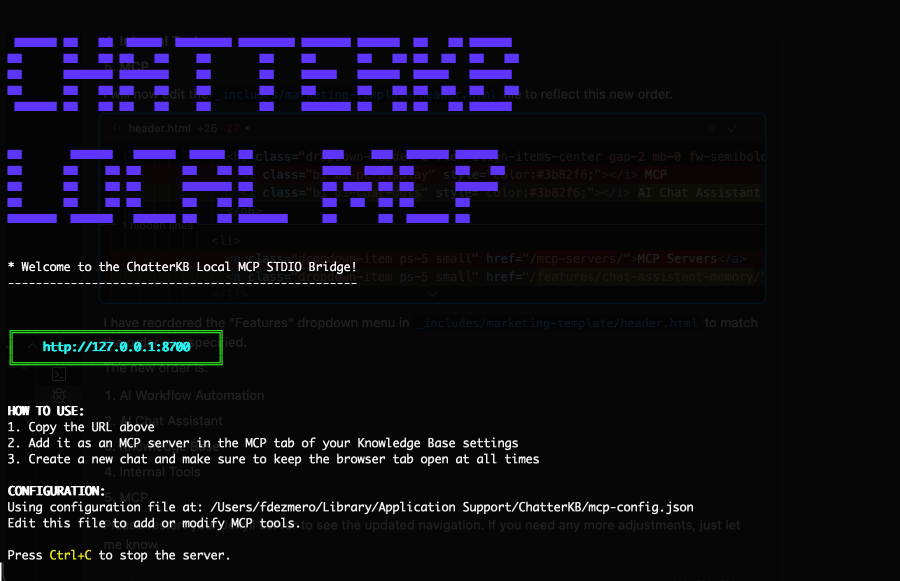
Local MCP Sent to Your Browser
Four quick steps to connect your desktop tools and start chatting.
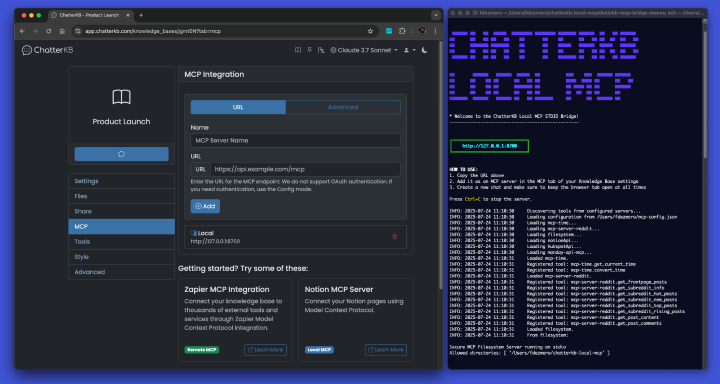
Download the Bridge
Visit your knowledge base settings to grab the installer
- Click Download MCP Bridge
- Unzip the files to any folder
- Double-click the Mac or Windows app to launch it
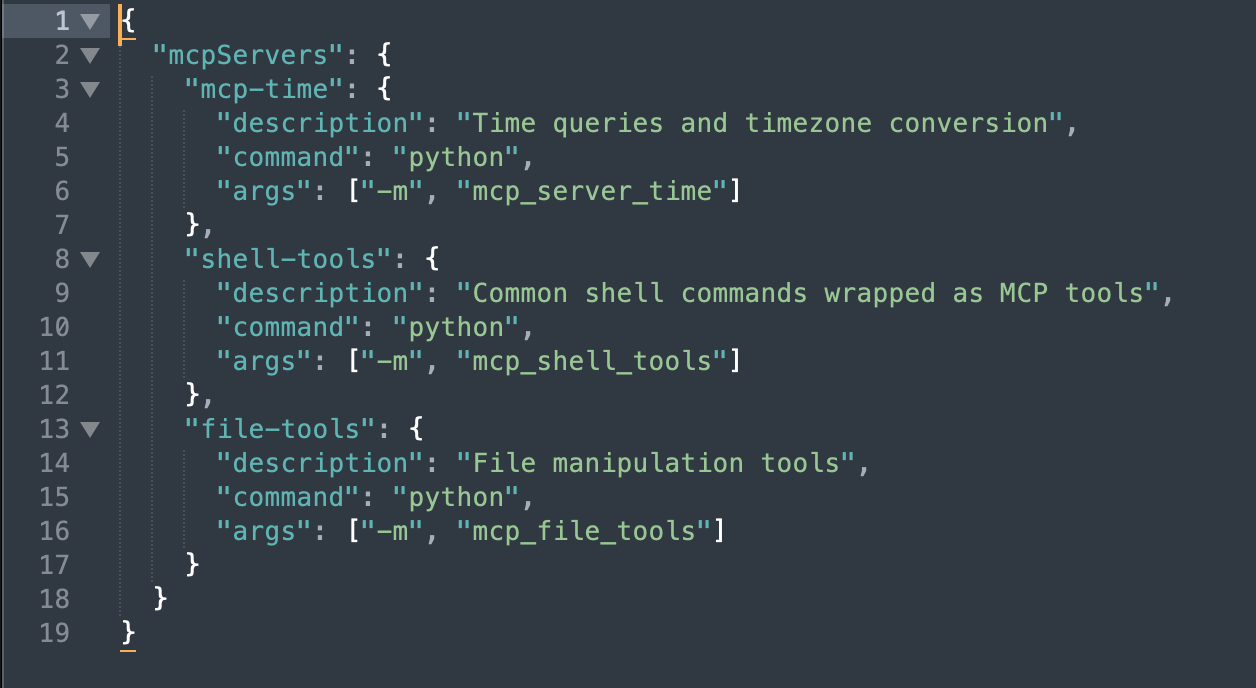
Add Your MCP Servers
Works with Claude, Cursor, and other desktop clients
- The bridge opens a config page for your MCP servers
- Click Save and Apply to connect automatically
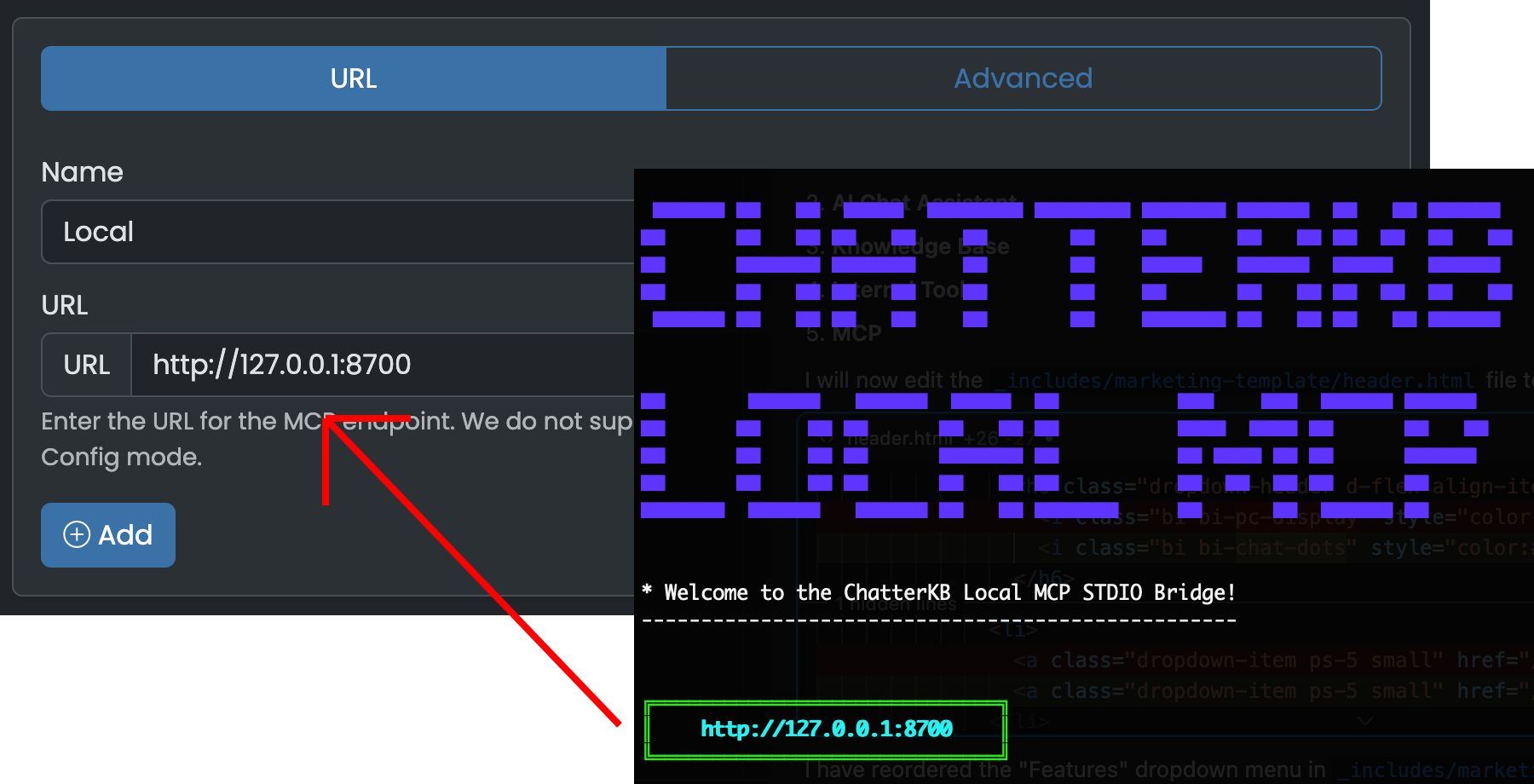
Add the URL to ChatterKB
Surface internal tools directly in every conversation
- Copy the local MCP URL from the bridge
- Paste it into ChatterKB and click Add
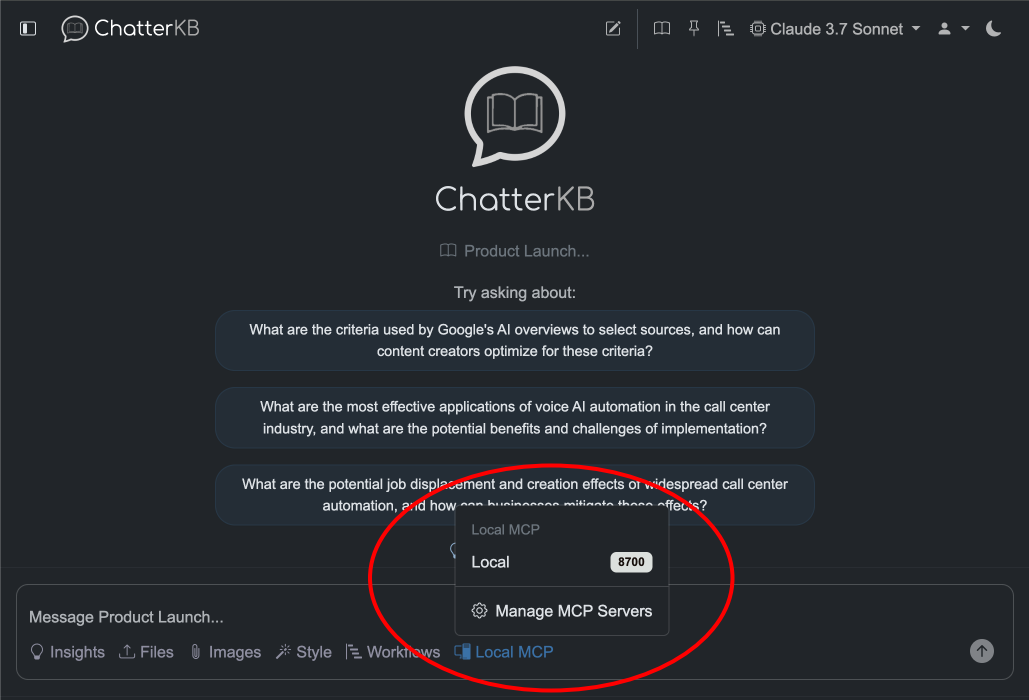
Start a New Chat
Local MCP appears as soon as the connection is live
- Launch a new thread and choose Local MCP
- Try “List your tools” to confirm everything is ready
- Keep the bridge tab open so your connection stays active
Connect Your Local MCP Servers Today
Unlock powerful automations using MCP integrations.